

Claude Projects: Stop Re-Explaining Yourself in Every Chat
- Posted on November 22, 2026
- AI Tools
- By MmantraTech
- 9 Views
You open a new chat with Claude and type the same thing again. "I am a final-year student. My project is a library management system. I use Laravel and MySQL. Please keep answers simple." Five minutes later you open another chat, and you type it all over again.
If that sounds like your week, this tutorial is for you. Claude Projects give Claude a permanent briefing for one area of your work, so every new chat starts already knowing the background. In this article you will learn what a project is, how it works inside, how to set one up, and the mistakes that quietly make it worse.
Table of Contents
- The real problem: every chat starts from zero
- What a Claude Project actually is
- The three building blocks
- One simple example, before and after
- Create your first project step by step
- How to write good project instructions
- Project knowledge vs a file dropped in one chat
- What happens when your knowledge gets big
- Chats in a project do not read each other
- Sharing a project with your team
- Keeping projects tidy
- Project ideas you can start today
- Common mistakes to avoid
- FAQ
- Conclusion
1. The real problem: every chat starts from zero
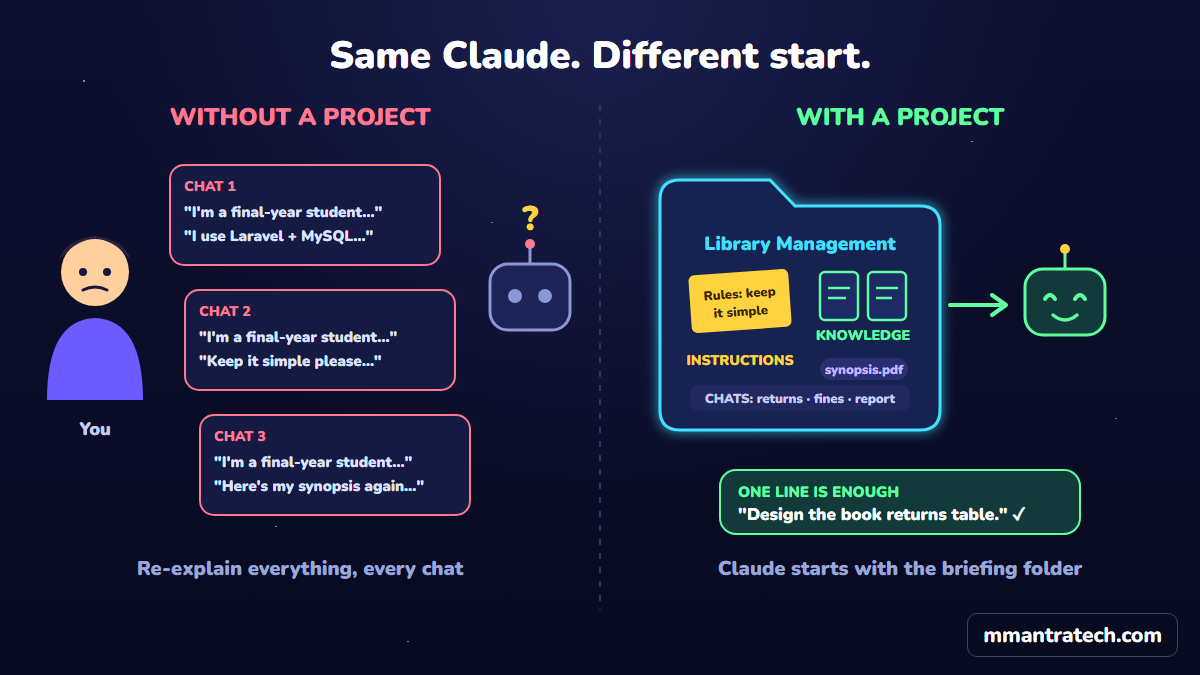
Imagine you hire an assistant. Smart, fast, polite. But there is one strange rule: every morning a brand-new assistant walks in, and nobody has told them anything.
So every morning you explain the same things:
- Who you are
- What you are working on
- Which tools you use
- How you like things written
- Where the important documents are
That is roughly how a normal chat feels. The model is capable, but a fresh conversation does not automatically carry your background from yesterday's chat.
Now imagine that same assistant finds a briefing folder on the desk every morning. Inside it: a note on how you like things done, the key documents, and the earlier discussions. They read it, and they are useful from the first minute.
That briefing folder is a Claude Project.
2. What a Claude Project actually is
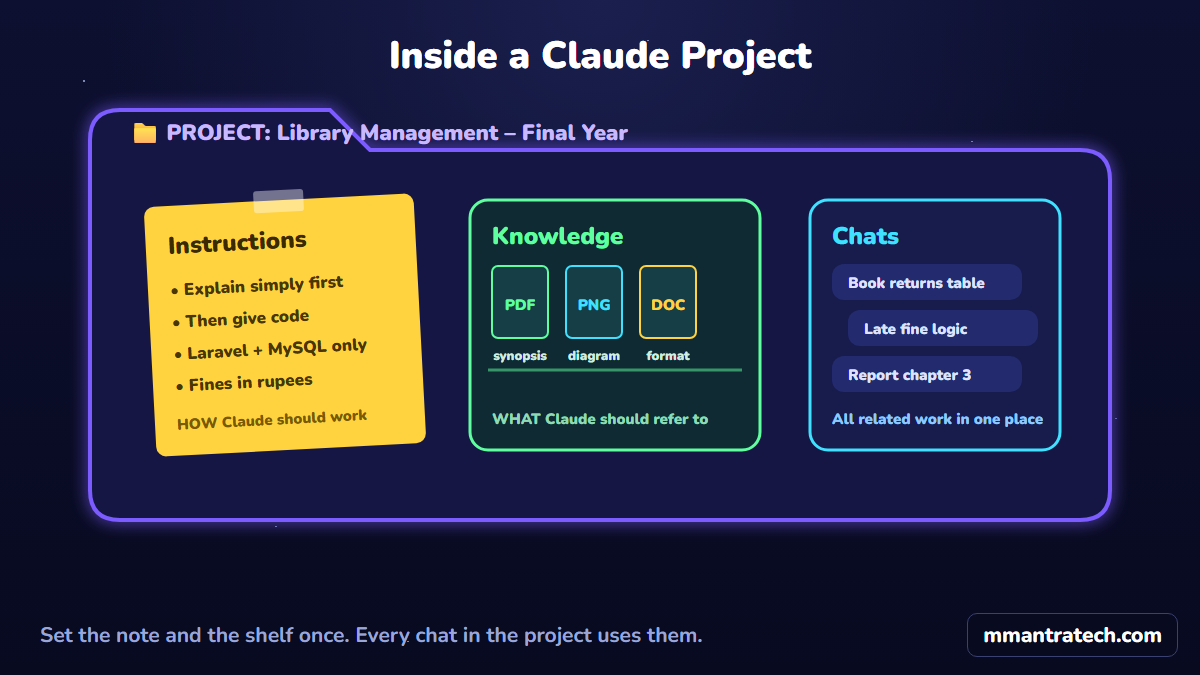
A Claude Project is a separate workspace for one area of your work. It keeps three things together in one place:
- Instructions: how Claude should behave in this workspace
- Knowledge: the files and notes Claude should refer to
- Chats: all the conversations that belong to this work
The key idea is simple:
Whatever you put in the project's instructions and knowledge is considered in every chat you start inside that project. You set it once, not once per chat.
A project is not a different AI model. It is the same Claude, with a better briefing. Think of it like a labelled drawer in your desk. The drawer does not make you smarter. It just means everything for "college project" is in one place when you need it.
3. The three building blocks
Instructions: the sticky note on the folder
Instructions tell Claude how to work inside this project. Tone, level of detail, format, the role it should play, and what it should avoid.
For example:
- "Explain like I am a beginner, then show code."
- "Always reply in simple English, short paragraphs."
- "Act as a strict reviewer. Point out mistakes first."
These instructions apply to every chat in the project. They also work alongside your general profile preferences and any writing style you have selected in Claude.
Knowledge: the shelf of reference material
Knowledge is what Claude should know for this work. You can upload documents, PDFs, spreadsheets, CSV and text files, paste plain text, and on supported plans connect sources such as Google Drive or a GitHub repository.
Once a file is in project knowledge, you do not attach it again. Every chat in the project can use it.
Chats: the conversations that belong together
Every chat you start inside the project lives there. So when you come back next week, you are not scrolling through a long list of unrelated chats about recipes, resumes and random questions. The project page shows only the conversations for this work.
4. One simple example, before and after
Let's follow Neha. She is a final-year computer science student building a library management system for her college project. She uses Laravel and MySQL, and her guide wants a project report in a fixed format.
Before: a normal chat
Neha asks:
Neha: "How should I design the table for book returns?"
Claude gives a good, generic answer. But it does not know she uses MySQL, that her college already has a students table with a roll number, or that her guide wants late fines calculated per day. So she adds all of that in the next message. Then again tomorrow, in a new chat.
After: inside a project
Neha creates a project called Library Management – Final Year. She adds:
- Instructions: "I am a final-year student. Stack: Laravel 11 and MySQL. Explain simply, then give code. Use Indian rupees for fines."
- Knowledge: her project synopsis PDF, the database diagram, and the report format her guide shared.
Now she asks the same question:
Neha: "How should I design the table for book returns?"
This time Claude can use her synopsis and diagram. The answer links returns to her existing students and books tables, adds a per-day fine column in rupees, and gives a Laravel migration. She typed one line. The background came from the project.
That is the whole benefit in one example: less repeating, more relevant answers.
5. Create your first project step by step
The exact buttons may move as Claude's interface changes, but the flow stays roughly like this:
- Open Claude and click Projects in the left sidebar.
- Click New project.
- Give it a clear name, for example "Library Management – Final Year".
- Optionally add a short description of the goal. You can edit both later.
- Click Create project.
- On the project page, open Instructions, write how Claude should behave, and save.
- Open the Files or knowledge area, click the + button, and upload your documents. Dragging files onto the page usually works too.
- Start a new chat from inside the project and test it with a real question.
A quick tip for step 8: ask something that needs your files to answer. For Neha, "Which modules in my synopsis are still missing from the database diagram?" If the answer clearly uses her documents, the project is set up correctly.
Small extras worth using
- Star a project you use daily, so it appears near the top of the sidebar.
- Edit details from the project's menu if the name or goal changes.
- Choose visibility on team plans: keep it private, or share it with colleagues.
6. How to write good project instructions
Most people either leave instructions empty or write an essay. Both are mistakes. Good instructions are short, specific and about how to work, not a dump of facts.
A simple template that works for most projects:
## Who I am
Final-year B.Tech student. Comfortable with PHP basics, new to Laravel.

## Goal of this project
Build and document a library management system for college submission.

## How to answer
- Explain the idea in 2-3 simple lines first, then show code.
- Use Laravel 11 and MySQL only.
- Keep code commented and beginner friendly.
- If my question is unclear, ask one question before answering.

## Avoid
- Long theory without an example.
- Packages that are not free.
Notice what is not in there: the whole database design, the synopsis, the report format. Those belong in knowledge as files. Instructions say how to behave. Knowledge holds the facts.
Simple rule: if it is a rule, put it in instructions. If it is a document, put it in knowledge.
7. Project knowledge vs a file dropped in one chat
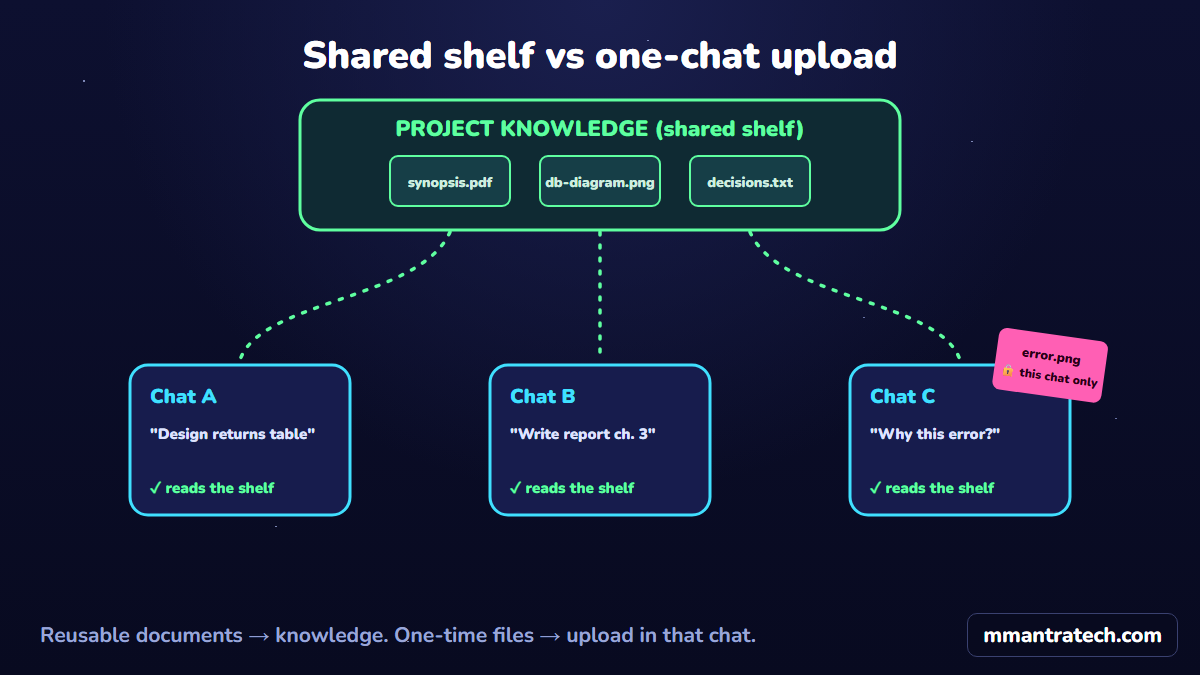
There are two places you can give Claude a file, and they behave differently.
| Where you add the file | Who can use it | Best for |
|---|---|---|
| Project knowledge | Every chat in the project | Documents you will need again and again: synopsis, guidelines, specs, style guides |
| Upload inside one chat | Only that one conversation | One-time material: a single error screenshot, a sample you want checked once |
Why does this matter? Because the knowledge area should stay clean. If Neha uploads every error screenshot into project knowledge, the shelf fills up with noise, and the useful documents become harder for Claude to focus on.
So keep long-term references in knowledge, and attach one-off files directly in the chat.
8. What happens when your knowledge gets big
Every AI model has a working memory limit, called the context window. Think of it as the size of the desk. Only so many pages fit on it at once.
When your project knowledge is small, Claude can keep all of it on the desk. When it grows past that size, Claude switches to a smarter approach called retrieval-augmented generation, or RAG.
Here is the simple version, using a library:
- Small project: all your books fit on the reading table. Claude reads the whole table.
- Big project: the books go on shelves. When you ask a question, a librarian looks up the most relevant pages and puts only those on the table.
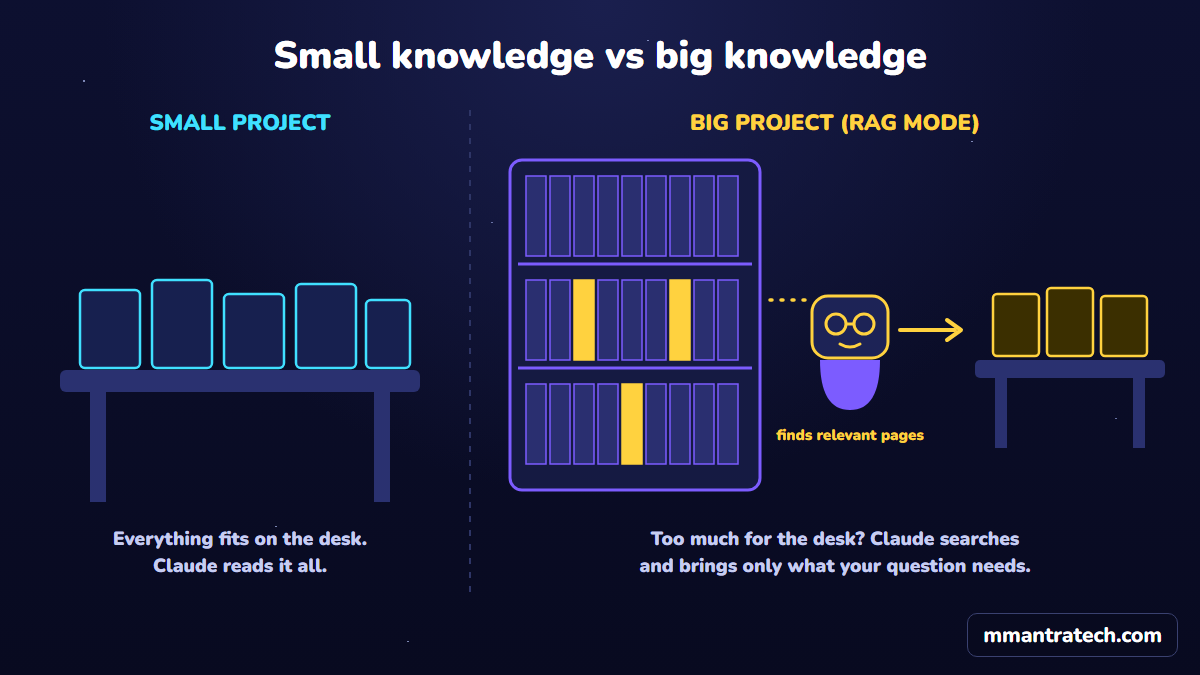
According to Anthropic's help article on RAG for projects, this happens automatically when knowledge goes beyond the context limit, can expand capacity by up to about ten times, and switches back if your knowledge shrinks again. You do not have to turn anything on.
One practical effect: with very large knowledge, Claude is searching rather than reading everything. Clear file names and well-organised documents help it find the right page. "synopsis-final.pdf" beats "doc1 (3) new.pdf".
9. Chats in a project do not read each other
This one surprises almost everyone.
All chats in a project share the same instructions and the same knowledge. But one chat does not automatically see what you said in another chat.
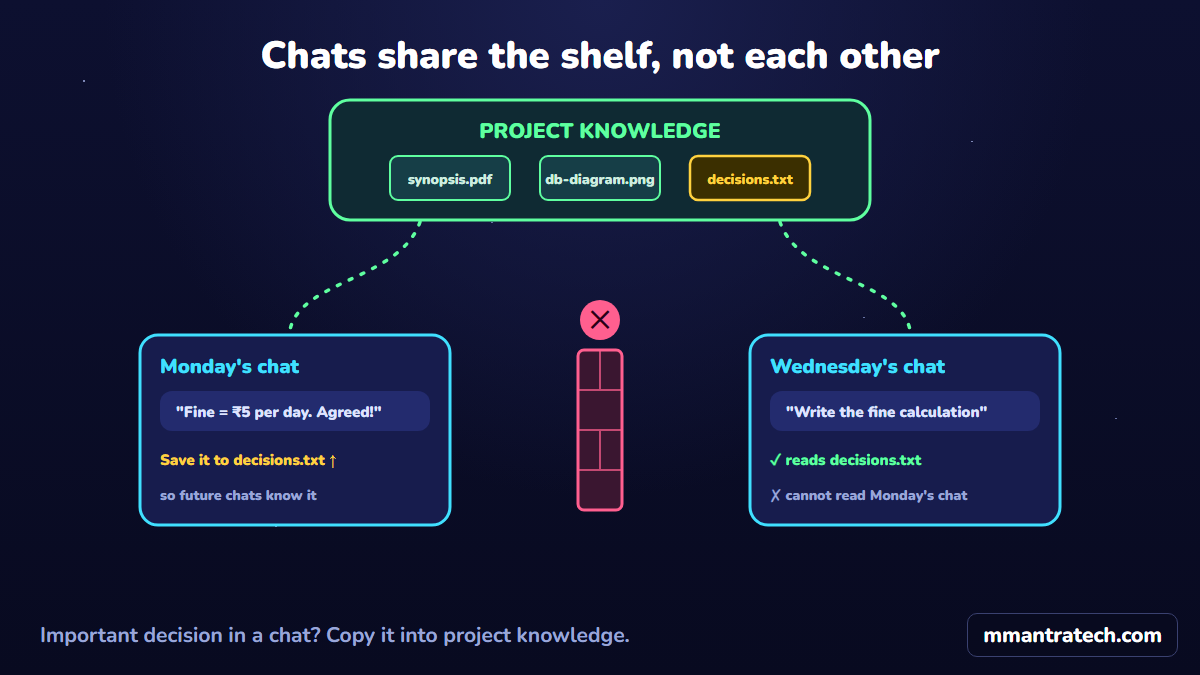
Example: in Monday's chat, Neha decides with Claude that fines will be ₹5 per day. On Wednesday she opens a new chat in the same project and asks for the fine calculation code. The new chat does not know about Monday's ₹5 decision.
The fix is easy. When a chat produces an important decision, add it to the project knowledge. Neha can keep a small text file called decisions.txt:
DECISIONS
- Late fine: Rs 5 per day, maximum Rs 200 per book.
- Students can borrow up to 3 books at a time.
- Login uses college roll number, not email.
Now every future chat knows these rules.
What about Claude's memory?
Claude also has a memory feature on many plans. Anthropic's projects overview explains that each project keeps its own memory, separate from other projects, and you can control whether a project uses your account memory. Even so, a decisions file is the most reliable way to make sure important choices are always in front of Claude.
10. Sharing a project with your team
On Claude's Team and Enterprise plans, you can share a project with people in your organisation. This turns a project into a shared team brain: one place with the right instructions and documents, so everyone gets answers based on the same background.
A simple office example: the support team creates a project with the refund policy, product FAQs and a tone guide. A new team member can now draft a polite, correct customer reply on day one, without memorising every policy.
Permission levels in plain words
| Role | What they can do | Think of it as |
|---|---|---|
| Can view | See the project, use its knowledge and chat inside it, but not change instructions or files | Read-only, with permission to ask questions |
| Can edit | Change instructions, add or remove knowledge, manage members and contribute | Full team member |
| Owner | Everything above, plus deciding who can see the project and changing access | The person who holds the keys |
Projects shared with you usually appear under a "shared with me" view, and you may get an email when someone shares one. You can also share individual chats so teammates can see how an answer was reached and continue from there.
A good habit: give most people Can view, and only a few people Can edit. That way the instructions and knowledge do not change without someone noticing.
11. Keeping projects tidy
Projects work best when each one has a clear boundary. A few small habits keep them that way:
- Move chats in. Started a useful chat outside a project? From the chat's menu, add it to the right project.
- Move chats out. A chat that has nothing to do with the project? Remove it or move it to another one, so the project stays focused.
- Archive finished work. When Neha submits her project, she archives it. It disappears from the main list but is still available later.
- Update stale files. If the synopsis changes, replace the old file. Two versions of the same document confuse everyone, including Claude.
12. Project ideas you can start today
A project is useful whenever you keep coming back to the same topic with the same background. Here are a few simple ideas:
| Project | Instructions idea | Knowledge to upload |
|---|---|---|
| Exam preparation | "Quiz me, explain mistakes simply." | Syllabus, class notes, past papers |
| Job hunting | "Act as a strict recruiter for backend roles." | Your resume, target job descriptions |
| Freelance client | "Write in this client's brand voice." | Brand guide, past approved work |
| YouTube channel | "Suggest hooks and titles for beginners." | Channel description, top video scripts |
| Coding side project | "Use my stack and coding style only." | README, folder structure, coding rules |
| Family event planning | "Keep a checklist and budget in rupees." | Guest list, vendor quotes, budget sheet |
Pick the one you repeat most this week. That is the best first project.
13. Common mistakes to avoid
One giant project for everything
Putting college work, a client and your personal budget in one project mixes unrelated context. Claude then has to guess which part matters. One project per area of work keeps answers sharp.
Instructions that read like a novel
Instructions are considered in every chat. Keep them short and clear. Move long details into knowledge files.
Expecting chats to remember each other
As covered above, they do not automatically. Save important decisions into knowledge.
Uploading everything "just in case"
More files is not always better. Outdated or irrelevant files can pull answers in the wrong direction. Upload what you will actually use.
Trusting answers without checking
A project makes Claude better informed, not perfect. Run the code. Read the numbers. Confirm anything important against the original document.
FAQ
Are Claude Projects free?
Projects are available on Claude's free plan as well as paid plans, though free accounts may have tighter limits, for example on how many projects or how much usage you get. Sharing with teammates needs a Team or Enterprise plan. Plans change over time, so check Claude's current plan page.
Is a project the same as training Claude on my files?
No. Your files are given to Claude as context when you chat in the project. The model itself is not retrained. That is why updating a file takes effect right away.
Can I add an old chat to a project?
Yes. Open the chat's menu and add it to a project. You can also move a chat out of a project or into a different one.
Do instructions override my profile preferences?
They work together. Your general preferences apply everywhere, and project instructions add the rules for that specific workspace.
What is the difference between Projects and Artifacts?
A project organises your context: instructions, files and chats. An artifact is something Claude creates for you, like a document or a small interactive app. You can create artifacts inside a project chat. See our tutorial on building an AI app with Claude Artifacts.
Why do my Claude limits run out faster in a big project?
Larger context generally means more processing per message. If you hit limits often, trim unused files and keep instructions short. We explained this further in why your Claude AI credits disappear fast.
Conclusion
A Claude Project is a briefing folder for one area of your work. Instructions tell Claude how to behave. Knowledge tells it what to refer to. Chats stay together so you can find them again.
Start small. Pick one thing you keep re-explaining, create a project, write five lines of instructions, upload two or three key files, and ask a real question. If you would like a simple routine to remember:
- Rules go in instructions.
- Documents go in knowledge.
- Decisions from chats go into a decisions file.
Do that, and Claude stops feeling like a new assistant every morning and starts feeling like a teammate who has read the folder.



Write a Response